What Your Website Visitors Can’t Find, and How to Fix It
 Breezy Team ·Oct 4, 2026 ·5 MIN READ
TL;DR: Visitor searches show what people want to know. With Breezy AI Search, you can review their questions, check whether your site already answers them, improve the right page, and test again. A short weekly review turns those questions into steady content improvements.
Your website explains your services and shows your work. You have made it easy to get in touch. Then a visitor asks something you never thought to answer: “Can you maintain a website built by another agency?”
That detail may be what they need before making an enquiry. Without an answer, they may look elsewhere.
Breezy AI Search helps you see what visitors are trying to find. Their questions can reveal where a page needs a clearer explanation or where information is missing. Reviewing those searches gives your team a useful starting point for the next website update.
Start with the questions visitors actually ask
Page views show where people went. Search queries give you a closer look at what they wanted to know. A question about support could reveal a concern that your service page never addresses.
Our WhooshPro case study recorded 382 searches in the first 30 days. The team used those visitor questions to guide its content roadmap, and each one pointed to something specific to investigate.
A quieter site may have fewer searches to review. One relevant question can still point to a useful improvement.
Read the questions and check the gaps
Open Analytics → Queries and read All Queries first. Grouped Queries helps you explore similar questions. Content Gaps narrows the view to searches that returned no results.
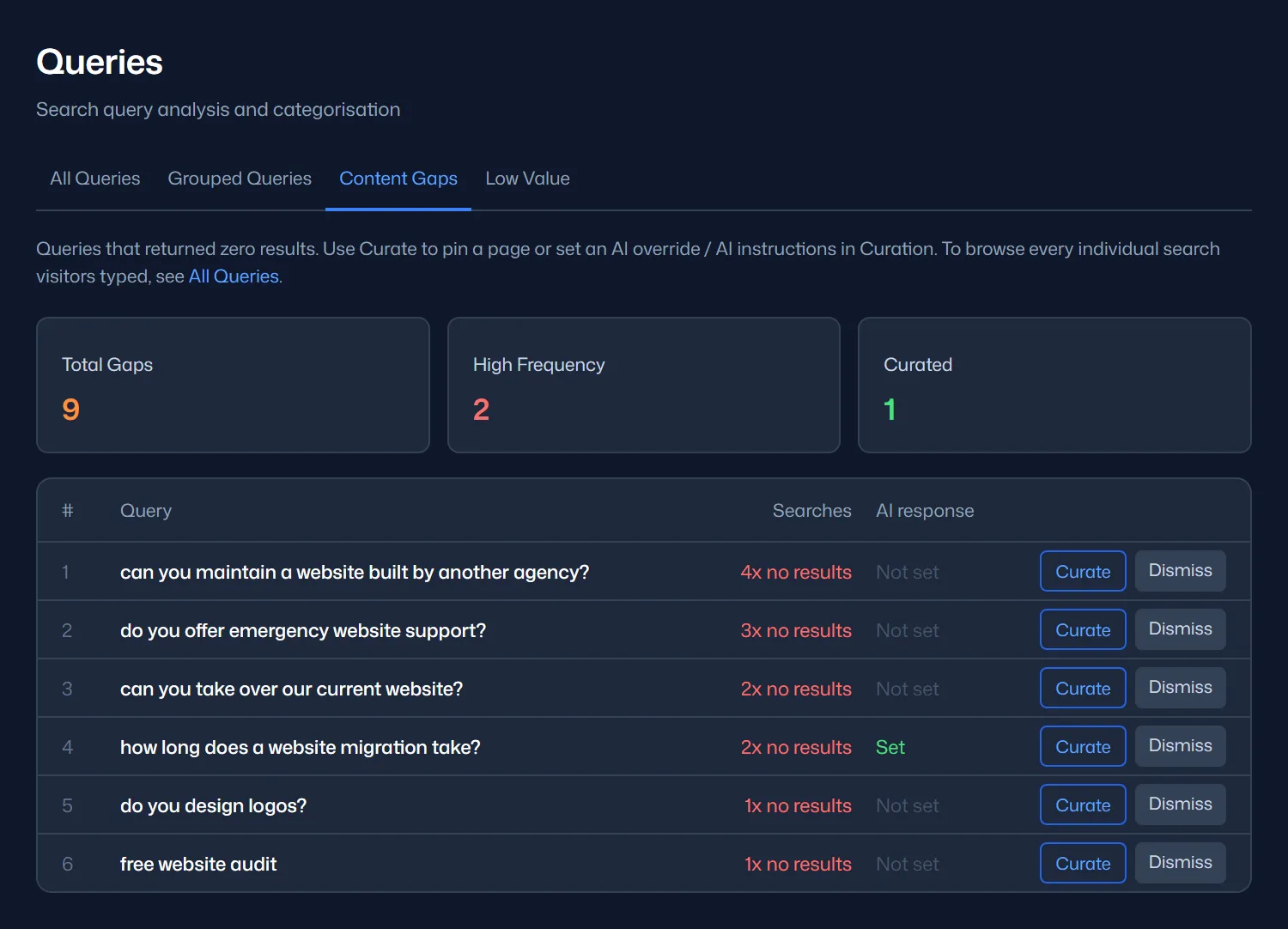
An empty result is only one sign of a problem. A search can find a page without answering the visitor’s question. Check a few answered queries too. Start with questions that could affect someone’s decision to enquire.
Treat frequency as a guide. Repeated searches may come from the same person. Suggested questions and your team’s testing can also affect the numbers.
Diagnose the problem before writing more
Before adding content, check whether your website already answers the question. The next step depends on what is wrong.
| What you find | The useful next step |
|---|---|
| The answer is missing. | Add accurate information to the most relevant service page, FAQ or guide. |
| The answer exists but is vague or buried. | Make it explicit. Use the language a customer would use and preserve any conditions. |
| The page is not indexed, or its indexed content is old. | Check page status and exclusions. Use Discover Now to index a new or changed page. |
| A relevant page exists, but a less useful page ranks ahead of it. | Use Curation to pin the appropriate page for that query, then test the result. |
A short addition to a service page may be enough. An indexing issue needs a different fix. Write a new article when the question calls for a fuller explanation.
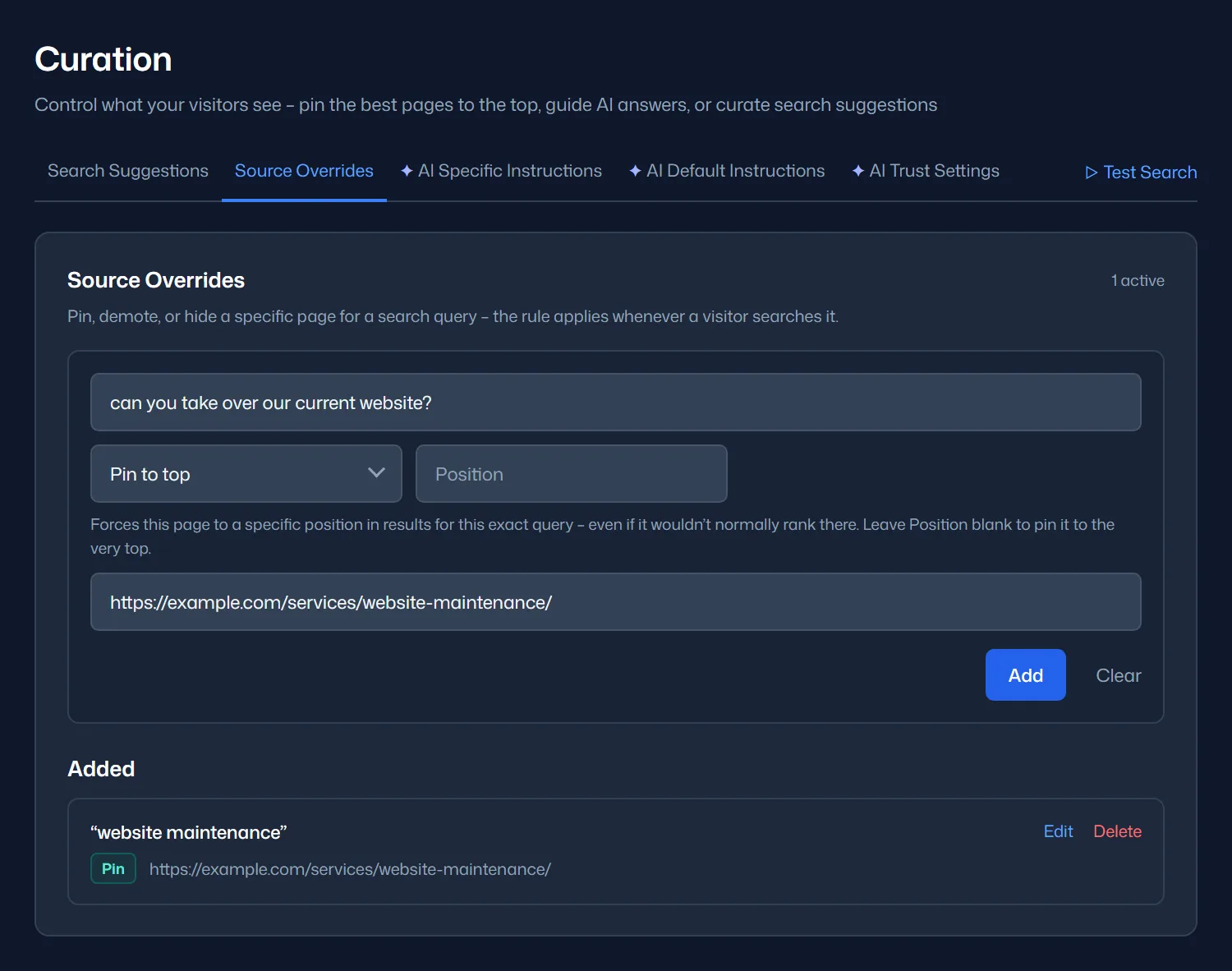
Curation helps the right page appear. That page still needs to answer the question. Any specific AI answer you supply should agree with your service terms and published information.
Choose the questions closest to a decision
Start with questions that could stop someone from taking the next step. Use frequency to help prioritise questions of similar importance.
A question about taking over an existing website may deserve attention after just one search. A popular off-topic question may need no new content. Dismiss irrelevant gaps to keep the list useful. Dismissing a gap does not fix the answer. For a gap that needs handling today, click Curate to open it in Curation with the question already filled in.
Save the original question with a short note about the problem. Assign the change to someone and name the page or setting they need to update.
An example from a service website
Consider a web agency receiving the question from our opening example. The following scenario is illustrative.
Its maintenance page covers updates and backups. It never says whether the agency supports websites built by someone else. The team adds a short FAQ explaining which sites qualify. It includes the need for an initial review and a link to request one. These details must reflect the agency’s actual terms.
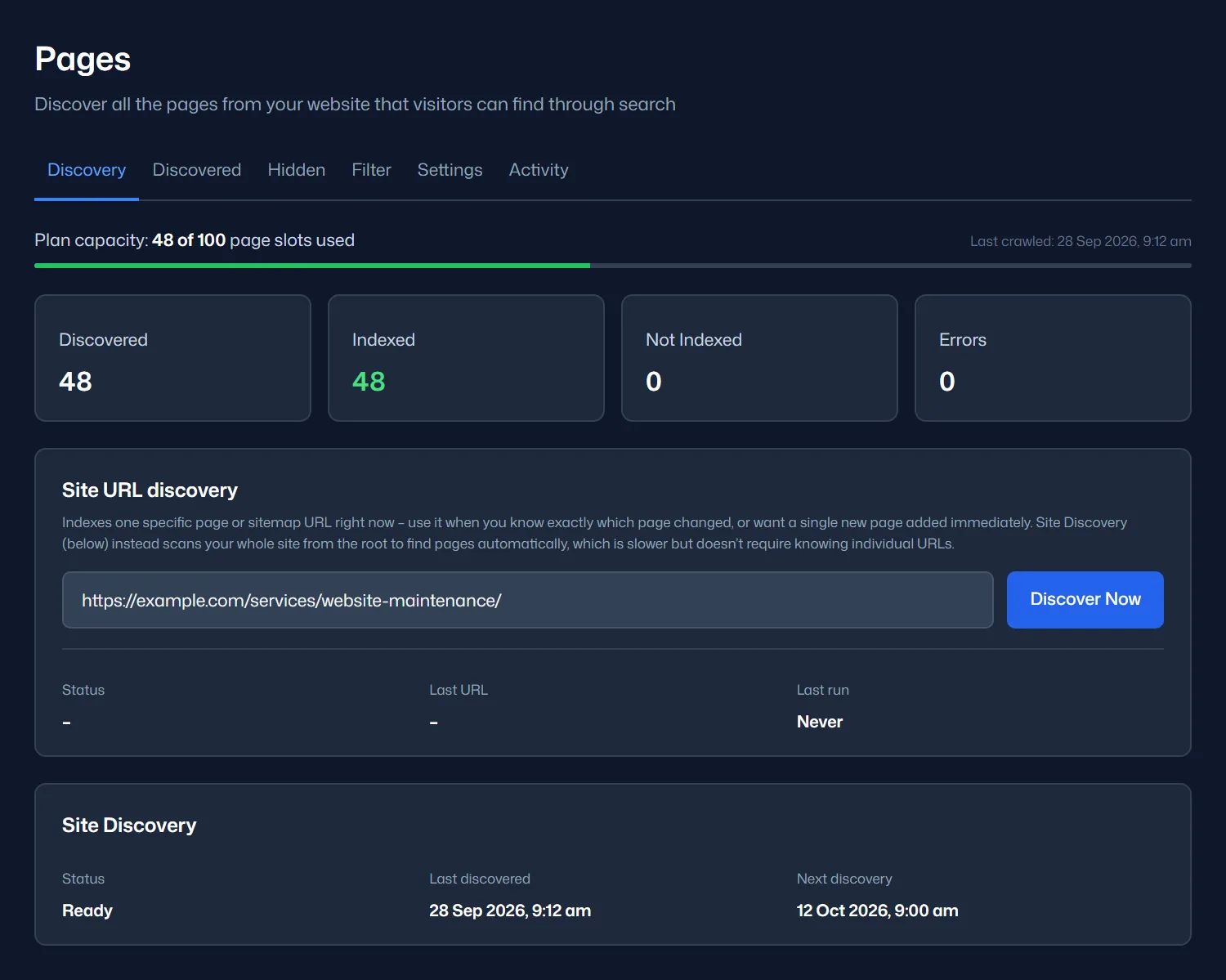
The team opens Search → Pages → Discovery, enters the page URL under Site URL discovery and clicks Discover Now. This indexes the change straight away. The same works for a new page, or the team can wait for scheduled discovery. The available schedules and manual allowances depend on your plan.
The team then asks the original question again. It also tries “Can you take over our current website?” The answer should retain the eligibility conditions and link to the relevant page. Follow that link to check that the visitor can find out what to do next.
Make search review part of your week
A short weekly review is enough to get started. Pick one or two relevant questions from recent searches and investigate them. Test again after making a change. On a low-traffic site, use a wider date range and allow more time for patterns to emerge.
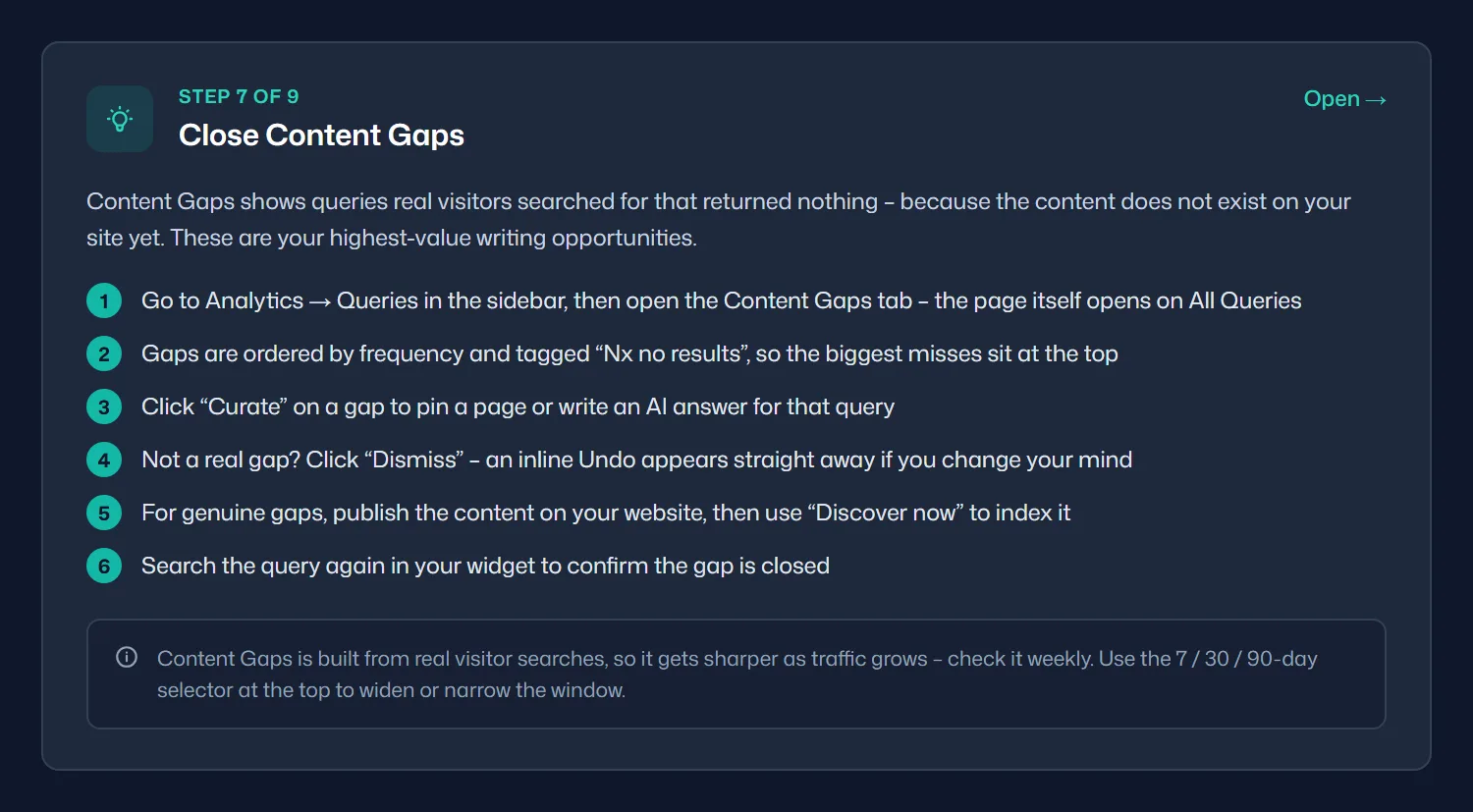
Keep a brief record of what you changed and whether the retest worked. Watch for the same problem in later searches. The AI Answer and Sources click-through in Statistics › Widget Engagement shows whether visitors follow answers to your pages. Measure enquiries separately if you want to assess the effect on leads.
This gives search a continuing role in your marketing work. Visitors get help finding information. Your team gets a clearer view of what still needs attention. Regular review turns those questions into improvements.
Start with one question
Try Breezy AI Search with questions your customers already ask. Then review visitor searches as they arrive. Choose one question your site handles poorly and improve the relevant page. Test it again to see whether the change helped.